WordPress on Hostinger: Launch Your First Site Step by Step
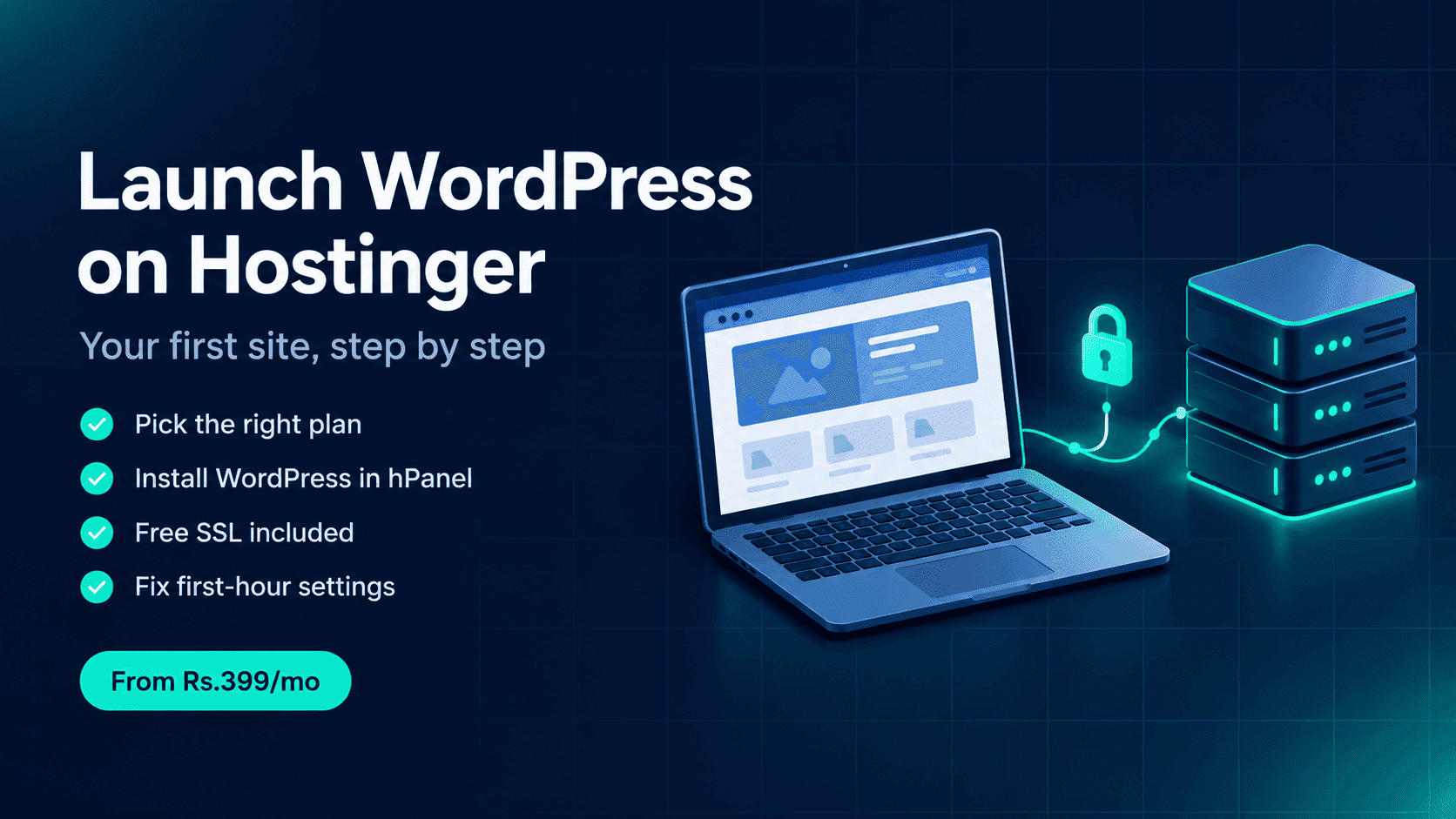
Launch your first WordPress site on Hostinger: pick a plan, claim a domain, install WordPress in hPanel, check SSL and fix key settings. PKR prices included.
October 26, 2026 · Hosting · 11 min read
WordPress on Hostinger: Launch Your First Site, Step by Step
The exact path I would follow to take a WordPress site from nothing to live on Hostinger: plan, domain, install, SSL, and the first-hour settings most beginners skip.
Quick answer
Buy a Hostinger plan, then in hPanel go to Websites → Add website → Install WordPress, pick your domain (or a free subdomain) and set a strong admin login. WordPress installs in seconds and a free SSL certificate is added automatically. After that, spend 30 minutes on the settings in Step 6 before you publish anything.
Affiliate disclosure
This post contains my Hostinger referral link. If you buy through it, you can get up to 20% off with code WEBHOST2026, and I earn a commission at no extra cost to you. Prices below were checked in October 2026 on Hostinger's Pakistan site. The checkout page is always the final word.
What you need before you start
You don't need to write a single line of code. WordPress itself is free, open-source software. What you actually pay for is the hosting that runs it and, eventually, the domain name.
- A Hostinger plan that supports WordPress. Every WordPress plan from Single upward does.
- A domain name idea, such as yourname.com or yourbusiness.pk. A domain is included with the plans below (details in the table notes).
- A payment method: a debit or credit card, or JazzCash where it is offered at checkout. My Pakistan hosting guide for students covers paying in PKR in detail.
- 30 to 60 minutes of focused time for the setup and first-hour settings.
Which Hostinger plan to pick for WordPress
Hostinger's Pakistan site lists four WordPress plans. Here is how they compare on the things that matter for a first site.
| Plan | Intro price | 48-month total | Renews at | Websites | Storage | Backups |
|---|---|---|---|---|---|---|
| Single | Rs.399/mo | Rs.19,152 | Rs.999/mo | 1 | 10 GB SSD | Weekly |
| Premium | Rs.599/mo | Rs.28,752 | Rs.1,699/mo | 3 | 20 GB SSD | Weekly |
| Unlimited | Rs.699/mo | Rs.33,552 | Rs.2,299/mo | Unlimited | 50 GB NVMe | Daily |
| Cloud Startup | Rs.2,099/mo | Rs.100,752 | Rs.5,399/mo | Unlimited | 100 GB NVMe | Daily + on-demand |
Source: Hostinger's Pakistan WordPress hosting page, checked October 26, 2026, on 48-month terms during their current sale. Prices are before the referral discount and exclude VAT. All plans are paid upfront; the monthly figure is the total divided by 48. Single lists a free domain; Premium and above list the domain as free for the first year. "Unlimited" features fall under Hostinger's fair usage policy.
My recommendation
For most first sites, Premium is the sensible default. You get room for three websites, so your blog, a portfolio, and a test site can live on one plan.
Look closely at Unlimited, though. Right now its intro price is only Rs.100/month more than Premium, and it adds daily backups and faster NVMe storage. The catch is the renewal: Rs.2,299/month versus Premium's Rs.1,699/month. If you plan to keep the site for years, that difference adds up.
Pick Single only if you are sure you will run exactly one small site and the budget is tight. Leave Cloud Startup for later, when real traffic justifies it. My shared vs VPS vs cloud explainer covers when that upgrade makes sense.
One honest note: the renewal price is the real long-term cost. A longer term (24 or 48 months) keeps you on the intro price for longer, which is why I usually go long on hosting I'm confident about.
How to launch WordPress on Hostinger, step by step
Here is the whole process at a glance. Each step is explained below.
- Buy your plan through the referral link (12 months or longer).
- Claim your domain or start on a free subdomain.
- Install WordPress from hPanel.
- Check that SSL (the padlock) is active.
- Log in to your WordPress dashboard.
- Fix the first-hour settings.
- Create your essential pages.
- Set up the basics for Google.
Step 1: Buy your plan through the referral link
Open Hostinger through my referral link, choose your WordPress plan, and pick a billing period of 12, 24 or 48 months. For hosting plans like these, the referral discount only applies to terms of 12 months or longer, and only for new customers creating a fresh account.
On the checkout page, look for the discount line. If it isn't there, enter WEBHOST2026 in the coupon field. Domain-only purchases don't qualify. If anything looks off, my WEBHOST2026 coupon guide walks through the usual fixes.
Step 2: Claim your domain or use a free subdomain
After payment, hPanel walks you into setup and lets you claim your included domain. Keep it short, easy to spell, and free of hyphens. A .com works anywhere; a .pk signals a Pakistani business.
Not ready to choose a name? You can install WordPress on a free temporary subdomain, build the site there, and connect your real domain later.
If your domain is registered somewhere else, point its nameservers to Hostinger. DNS changes can take a few hours, and occasionally up to a day or two, to show up everywhere, so don't panic if the site doesn't load right away.
Step 3: Install WordPress from hPanel
This is the part that sounds scary but takes the least time. Following Hostinger's own documentation:
- Log in to hPanel and go to Websites → Add website.
- Choose Install WordPress.
- Select your domain or a free subdomain.
- Set your WordPress admin username and password, site title and language.
- Complete the setup. WordPress is usually running within seconds.
Two tips here. Don't use admin as your username, since it's the first one bots try. And store the password in a password manager rather than a notes app.
If your site already exists in hPanel, you can install WordPress from the website dashboard instead, using WordPress or Auto Installer. Hostinger also offers an AI website builder for WordPress that drafts layouts and pages. It's handy for a starting point, but I'd still review and rewrite every page in your own words.
Step 4: Check that SSL is active
Hostinger issues a free SSL certificate for every domain and subdomain you host, and renews it automatically. Open https://yourdomain.com and look for the padlock in the address bar.
If the browser says "Not secure", go to Security → SSL in hPanel, click Install SSL if it's offered, and turn on Force HTTPS. Then, in WordPress, open Settings → General and make sure both address fields start with https://.
Step 5: Log in to your WordPress dashboard
Go to yourdomain.com/wp-admin and sign in with the details from Step 3. You can also open your website dashboard in hPanel and click WordPress → Admin panel to get in without typing your password.
Step 6: Fix the first-hour settings
These are the settings I change on every new WordPress site before writing a single post. Doing them now saves real headaches later.
- Settings → General: set your site title, a short tagline, and your timezone (Karachi is UTC+5).
- Settings → Permalinks: choose "Post name" so URLs look like yoursite.com/my-first-post. Do this before publishing, because changing it later breaks existing links.
- Delete the sample content: the "Hello world!" post, the sample page, and any themes or plugins you won't use.
- Pick a lightweight theme under Appearance → Themes. Fast and simple beats flashy for a first site.
- Activate LiteSpeed Cache: Hostinger runs LiteSpeed servers, and its docs recommend this plugin after installation.
- Confirm backups in hPanel so you know where to restore from if something breaks.
- Settings → Reading: when you're ready to go live, make sure "Discourage search engines from indexing this site" is unchecked.
Step 7: Create your essential pages
Before you write posts, build the pages every site needs: Home, About, Contact and Privacy Policy. WordPress can generate a starting privacy page under Settings → Privacy. Edit it to match what your site actually collects.
Then publish your first two or three posts. A site with a few genuinely useful pages makes a much better first impression, on visitors and on Google, than one with ten thin ones.
Step 8: Set up the basics for Google
Install one SEO plugin, add your site to Google Search Console, and submit your sitemap. My SEO roadmap from launch to domain authority covers the full sequence, and my free robots.txt and sitemap generator helps if you need those files.
Images are the other easy win. Compress and rename them before uploading; I explain my exact routine in my blog image SEO workflow. No hosting plan guarantees rankings. Useful content and a clean setup are what move the needle.
Common first-week problems and how to fix them
| Problem | Likely cause | Fix |
|---|---|---|
| Domain doesn't load yet | DNS still updating, or nameservers not pointed to Hostinger | Wait a few hours, then double-check the nameservers at your registrar |
| "Not secure" warning | SSL still being issued, or WordPress URLs still use http:// | Security → SSL in hPanel, enable Force HTTPS, update both URLs in Settings → General |
| Design looks broken after switching to HTTPS | Mixed content: some images or scripts still load over http:// | Update old http:// links; Hostinger's help center has a mixed-content guide |
| Forgot your admin password | — | Use "Lost your password?" on the login page, or reset it in hPanel under WordPress |
| Pages show 404 after changing permalinks | Rewrite rules not refreshed | Open Settings → Permalinks and click Save Changes again |
| Site feels slow | Heavy theme, too many plugins, or large images | Activate LiteSpeed Cache, compress images, remove plugins you don't use |
Frequently asked questions
How do I install WordPress on Hostinger?
In hPanel, go to Websites → Add website, choose Install WordPress, select your domain or a free subdomain, and set your admin login. Hostinger installs it in seconds. For an existing site, use WordPress or Auto Installer from the website dashboard.
Is WordPress free on Hostinger?
Yes. WordPress is free software, and Hostinger installs it at no extra cost. You only pay for the hosting plan (and the domain after any free period ends).
Which Hostinger plan is best for a WordPress beginner in Pakistan?
For most beginners, Premium is the best balance: three websites at Rs.599/month on a 48-month term (October 2026 pricing). Unlimited is worth a look if you want daily backups, but check its higher renewal price first.
Does Hostinger include a free domain and SSL?
SSL is free on every hosted domain and subdomain and renews automatically. A domain is included too: the Single plan lists a free domain, while Premium and above list it as free for the first year. Check the domain renewal price at checkout.
Can I pay for Hostinger with JazzCash?
JazzCash is shown among the payment methods on Hostinger's Pakistan site, but what's available can vary at checkout. My Pakistan hosting guide covers local payment options.
Can I move my existing WordPress site to Hostinger?
Yes, migration is free with a hosting plan. Submit a migration request in hPanel, choose WordPress and fill in the details. Hostinger says it transfers the site within 24 hours.
Does code WEBHOST2026 work on monthly plans or renewals?
No. For hosting plans like these, the referral discount needs a term of 12 months or longer and applies to a new customer's first purchase. Domain-only purchases and renewals don't qualify.
What if I change my mind after buying?
Hostinger offers a 30-day money-back guarantee. Read the refund policy before you buy, since some items can have exceptions.
Useful links
- Get Hostinger with code WEBHOST2026 (up to 20% off)
- Hostinger docs: Installing WordPress
- Hostinger referral code WEBHOST2026: real PKR savings
- Cheap web hosting in Pakistan for students and beginners
- Shared hosting vs VPS vs cloud: what you really need
- SEO roadmap: website launch to domain authority
- Save More on Hostinger Service
- Muhammad Huzaifa: developer site
Your first WordPress site doesn't need to be perfect on day one. Get it live, fix the first-hour settings, and publish something genuinely useful. If you get stuck on any step, the table above covers most of what goes wrong in week one, and you can always reach me through my site.