Expo App Icon Generator – Free Tool to Create All React Native App Assets Instantly
Free Expo App Icon Generator for React Native. Upload one logo, get icon.png, splash.png, adaptive-icon, favicon & app.json in a ZIP. No sign-up required.
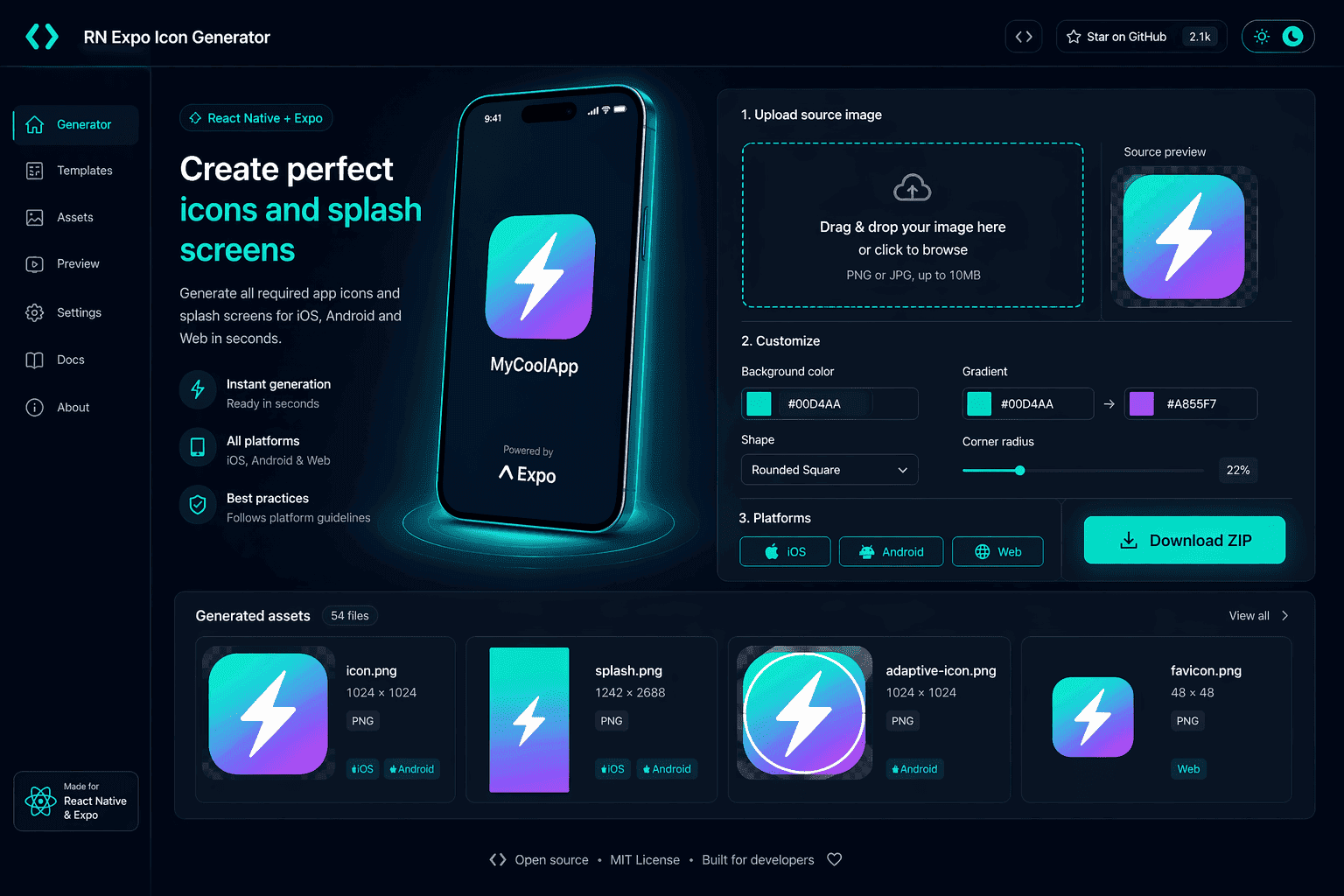
🚀 Expo Icon Generator for React Native — Upload One Logo, Get All Assets Instantly
Stop manually resizing images. This free tool generates every required Expo app asset — icon.png, splash.png, adaptive-icon.png, favicon.png, and a ready-to-use app.json — in one ZIP download.
🛠️ Free Online Tool
Expo Icon Generator for React Native
Upload one logo and instantly generate all required Expo app assets plus a starter app.json. Perfect for faster app setup, cleaner branding, and production-ready outputs.
Setting up a new Expo project? One of the most tedious parts is generating all the required icon and splash screen assets. You need specific sizes for iOS, Android, and Web — and if even one file is wrong, the build fails or your branding looks broken.
The Expo Icon Generator by 360solution.io solves this in seconds. Upload your logo once, pick your colors, and download a ZIP with every file Expo expects — plus a working app.json config.
app.json. Free. No account needed.
📦 What Assets Does It Generate?
Every Expo project needs the same set of image assets. Here's exactly what you get in the ZIP:
Plus a pre-filled app.json config that references all these files with correct paths.
🧭 How to Use the Expo Icon Generator
Upload Your Logo
Drag and drop a PNG, JPG, or SVG file. For best results, use a square image at 1024×1024px or larger with a transparent or solid background. The tool accepts all common formats.
Customize Colors
Pick a Background Color for your icon (default: #111827) and a Splash Color for the loading screen (default: #000000). You can also add optional logo text that appears on the splash screen.
Preview Live
Before downloading, use the Live Preview panel to see how your app icon and splash screen will actually look. This saves you from uploading to EAS only to discover a cropped or miscolored icon.
Download ZIP
Click Download ZIP. The archive includes all 5 image assets at correct Expo dimensions plus a ready-to-use app.json. Move the images to your assets/ folder and you're done.
📄 Sample app.json — Ready to Use
The generated app.json is pre-filled with all asset paths and your chosen colors. Just paste it into your Expo project root and adjust the name, slug, and version:
{
  "expo": {
    "name": "Your App Name",
    "slug": "your-app-slug",
    "version": "1.0.0",
    "icon": "./assets/icon.png",
    "splash": {
      "image": "./assets/splash.png",
      "resizeMode": "contain",
      "backgroundColor": "#111827"
    },
    "android": {
      "adaptiveIcon": {
        "foregroundImage": "./assets/adaptive-icon.png",
        "backgroundColor": "#111827"
      }
    },
    "web": {
      "favicon": "./assets/favicon.png"
    }
  }
}
✨ Key Features at a Glance
Icon, adaptive-icon, splash, splash-icon, and favicon — every file Expo needs.
Ready-to-use starter configuration, no manual path setup.
Separate color pickers for icon background and splash screen.
See your icon and splash screen before generating.
Completely free. No account, no email, no limits.
All outputs meet official Expo specifications and best practices.
🤔 Why Use This Tool Instead of Doing It Manually?
When you set up an Expo project from scratch, you're expected to provide images at very specific sizes. Here's what manual work looks like vs. using the generator:
💼 Common Use Cases
Generate all branding assets for new Expo projects in seconds.
Update icons and splash screens quickly when rebranding.
Keep iOS, Android, and Web branding consistent automatically.
Save hours on manual asset creation across multiple client projects.
📐 Expo Asset Requirements (Official Specs)
In case you're wondering why these dimensions matter — here's the official breakdown Expo expects:
- icon.png — 1024×1024px, used for iOS App Store and general app icon. Must be square with no transparency on iOS.
- adaptive-icon.png — 1024×1024px foreground layer for Android adaptive icons. Should have padding and transparent background.
- splash.png — 1284×2778px, full-screen background for the loading splash. Uses
resizeMode: "contain"by default. - splash-icon.png — 200×200px centered logo shown on the splash screen.
- favicon.png — 48×48px, used when your Expo app is deployed as a Progressive Web App (PWA).
💡 Best Practices for Expo App Icons
- ✅ Upload at 1024×1024 or larger — the tool handles resizing, but higher resolution input means sharper output.
- ✅ Use a transparent PNG for logos — this lets the background color show cleanly around your icon.
- ✅ Keep icon padding in mind — iOS clips icons to a rounded rectangle, so avoid putting critical branding at the very edges.
- ✅ Match splash color to your app's primary background — this creates a seamless transition from splash to app launch.
- ✅ Test on a real device — preview in the tool, then run
expo startand verify on both iOS and Android simulators.
❓ Frequently Asked Questions
Ready to Set Up Your Expo App in 60 Seconds?
Stop wasting time on manual image exports. Generate every Expo asset with one upload — free, forever.
🚀 Try Expo Icon Generator Free →📚 Related Articles
- 🔗 How I Reduced Next.js ISR Writes from 6,000 to 200 Per Day — Next.js performance optimization
- 🔗 Fix MongoDB querySrv ECONNREFUSED in Node.js — Atlas DNS error guide
- 🔗 All Developer Guides & Tools — Web development tutorials
The Expo Icon Generator is a free tool by 360solution.io. For Expo questions, see the official Expo docs.