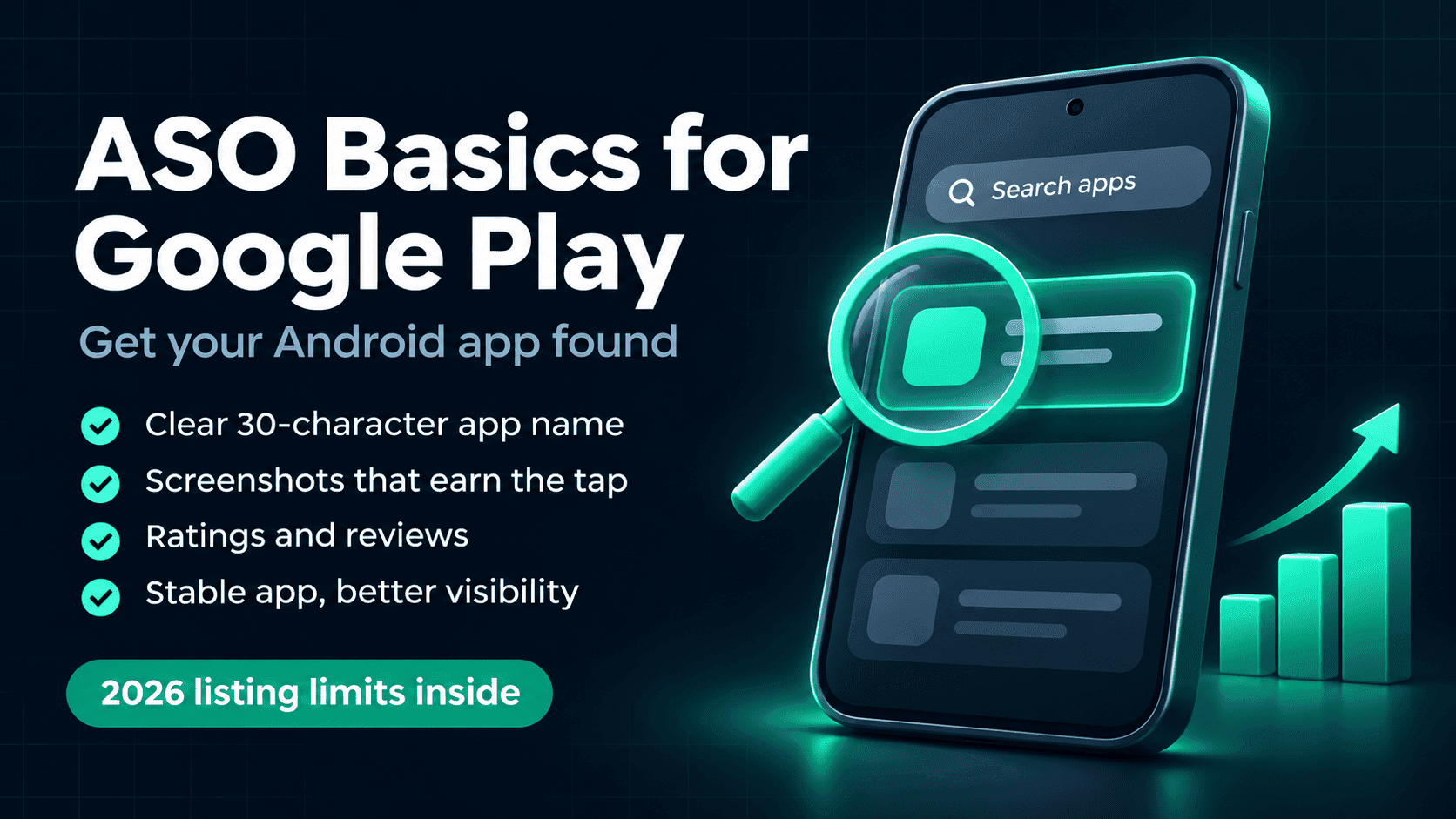
ASO Basics: How to Get Your Android App Found on Google Play
Learn Google Play ASO basics: 2026 listing limits, better titles and descriptions, screenshot specs, ratings and the Android vitals that affect app visibility.
November 12, 2026 · App Development · 10 min read
ASO Basics: How to Get Your Android App Found on Google Play
Publishing an app is the easy part. Getting it found in Google Play search is a skill. Here are the App Store Optimization basics I use on my own Android apps, with the current Play Console limits and rules.
ASO in one sentence
Help Google Play understand what your app does (your text), help people choose it when they see it (your graphics), and give them a reason to keep it (quality and ratings). Every tip below falls into one of those three.
What ASO is and how Google Play search works
App Store Optimization (ASO) is SEO for app stores. It is the work of improving your store listing so your app appears for the right searches and more of the people who see it tap Install.
Google does not publish its exact ranking formula. What developers can see is that a few things consistently matter:
- Relevance: your title, short description and full description tell Google Play what your app is about.
- Conversion: your icon, screenshots and video decide whether people install after seeing your listing.
- Quality: ratings, reviews and technical stability. Google says apps above its crash and ANR thresholds may get reduced visibility.
- Engagement: whether people keep using the app after installing it.
Google Play listing fields at a glance
| Field | Limit | What it does |
|---|---|---|
| App name | 30 characters | Your strongest relevance signal and first impression |
| Short description | 80 characters | Shown near the top of the listing; sells the main benefit |
| Full description | 4,000 characters | Explains features and helps Google understand your app |
| App icon | 512 × 512 px, 32-bit PNG, max 1024 KB | Seen everywhere: search, charts, home screens |
| Feature graphic | 1024 × 500 px, JPEG or 24-bit PNG | Banner used in parts of the store and above your video |
| Screenshots | 2 minimum, up to 8 per device type | The main thing people look at before installing |
| Preview video | One YouTube URL | Optional; strongly recommended for games |
Limits checked against Google's Play Console help pages in November 2026. Google Play has no separate hidden keyword field, so your visible text does the work.
Step 1: Find the keywords people actually type
Before writing anything, list the words your users would type into the Play Store search bar. Don't guess from your own vocabulary; developers and users rarely describe an app the same way.
- Use Play Store autocomplete. Start typing your main term and note the suggestions. They reflect real searches.
- Read competitor listings. Look at the titles and short descriptions of apps that already rank for your term.
- Think in your users' language. For a Pakistani audience, that can mean Urdu or Roman Urdu terms as well as English. For my Islamic apps, people often search the exact name of a book, dua or kalam, not a generic category.
- Pick one main keyword and two or three supporting ones. Trying to rank for everything usually means ranking for nothing.
Step 2: Write an app name that is clear and searchable
You have 30 characters. The pattern that works for most apps is Brand + main keyword, so people know both who you are and what the app does.
| Weak name | Better name | Why |
|---|---|---|
| Noor | Noor: Daily Duas & Azkar | Adds what the app does |
| Best Free PDF Reader #1 | Lumi PDF Reader & Editor | No ranking claims or deal words |
| QR SCANNER 🔥 | Scanly: QR & Barcode Scanner | No emoji or all caps |
These are made-up example names to show the pattern.
Google's own guidance says to avoid "Free", "No Ads", "Best", "#1", emojis, all caps (unless your brand is written that way) and irrelevant special characters in the title. Breaking these rules can get your listing rejected, not just ranked lower.
Step 3: Make the short description do one job
The 80-character short description should state your main benefit in plain words and include your main keyword naturally. Google recommends not repeating it word for word in the full description.
- Weak:
The ultimate app for all your needs, download now! - Better:
Read and listen to daily duas offline, with Urdu and English translation.
Step 4: Write a full description for people first
The full description can be up to 4,000 characters. Write it for a reader who is deciding whether to install, and the keywords will follow naturally.
- Open with the problem you solve in the first two or three lines. Many people never expand the full text.
- List key features in short lines, each starting with what the user gets.
- Use your main and supporting keywords where they genuinely fit, a few times across the text.
- End with who it is for and how to get help or send feedback.
Avoid keyword stuffing. Google specifically says lists of repeated or unrelated keywords are not allowed. Also skip anonymous testimonials; any quote or endorsement must name its source.
Step 5: Design graphics that earn the tap
Your text gets you into the search results. Your graphics decide whether people install.
App icon
Upload a 512 × 512 px, 32-bit PNG (with transparency) under 1024 KB. Keep it simple and recognisable at small sizes. Don't add badges or text that suggest a ranking, price or Play category, and don't imitate another brand's icon.
Screenshots
You need at least two to publish and can add up to eight per device type. To be eligible for Google Play's screenshot-based promotion formats, Google asks apps for at least four screenshots at 1080 px or more (for example 1080 × 1920 portrait or 1920 × 1080 landscape).
- Put your strongest feature in the first two screenshots; they are the ones people see without scrolling.
- Add a short caption to each, five or six words at most.
- Show the real app, not mockups of features that don't exist.
Feature graphic and video
The feature graphic is 1024 × 500 px. Keep text minimal and important elements near the centre, since it gets cropped in some places. If you add a YouTube preview video, turn off ads on it, make it public or unlisted, and show the real app within the first few seconds.
Step 6: Localize your listing
Play Console lets you add translated store listings for each language. A listing in your users' own language often converts better than an English one, and it lets you target the terms they actually search.
If your screenshots contain text, make a separate set per language. A Urdu listing with English-only screenshots feels unfinished.
Step 7: Earn ratings and reviews the right way
Ratings affect both ranking and whether people trust your app. Use Google's In-App Review API so users can rate you without leaving the app, and show the prompt after a positive moment, such as finishing a task, not on first launch.
Reply to reviews, especially the negative ones. A polite, specific reply ("Fixed in version 2.1, thank you for reporting it") tells future users the app is maintained.
Step 8: Keep your app stable (Android vitals)
This is the part of ASO most developers ignore. Google says that if your app goes over its bad behavior thresholds, Play may reduce your app's visibility and may show a warning on your store listing.
| Metric | Overall threshold | Per phone model |
|---|---|---|
| User-perceived crash rate | 1.09% | 8% |
| User-perceived ANR rate | 0.47% | 8% |
Thresholds from Google's Android vitals documentation, checked November 2026. Play evaluates the last 28 days of data.
Check the Android vitals section in Play Console after every release. Fixing a crash on a popular device can do more for your visibility than rewriting your description.
Step 9: Test instead of guessing
Play Console's store listing experiments let you A/B test graphics and localized text against your current listing. Test one change at a time, such as a new icon or a different first screenshot, so you know what made the difference.
Custom store listings let you create up to 50 tailored versions of your listing for specific countries, search keywords or campaigns, each with its own URL. They are useful once you have different audiences, for example one listing for Pakistan and another for the Gulf.
Listing mistakes that can get you rejected
- Ranking or performance claims such as "#1", "Best", "App of the year" or award icons.
- Price or promotion text such as "Free", "No Ads" or "50% off" in the title, icon or developer name.
- Emojis, all caps and decorative special characters in the title.
- Repeated keyword lists in the description.
- Comparing your app to named competitors, or using another brand's name to get found.
- Unattributed user testimonials.
Your ASO launch checklist
- Choose one main keyword and two or three supporting ones.
- Write a clear app name (30 characters max) with your brand and main keyword.
- Write an 80-character short description that states your main benefit.
- Write a full description for people, with keywords used naturally.
- Upload a clean 512 × 512 icon and a 1024 × 500 feature graphic.
- Add at least four 1080 px screenshots with short captions.
- Add translated listings for your main audience languages.
- Set up the In-App Review prompt after a positive moment.
- Check Android vitals after every release.
- Run one store listing experiment at a time and keep what wins.
Frequently asked questions
How long does ASO take to work on Google Play?
Text changes are usually picked up within days, but rankings can take a few weeks to settle. Give each change enough time and measure it in Play Console before making the next one.
Does Google Play have a keyword field like the App Store?
No. Google Play uses your visible text, mainly the app name, short description and full description, to understand your app. That is why writing those clearly matters so much.
Can I change my app name after publishing?
Yes. You can update your app name and other listing details in Play Console at any time. Changes go through review, so follow the metadata rules to avoid delays.
Can I use the word "free" in my app title?
No. Google's store listing guidance says not to use deal words such as "Free" or "No Ads" in the title or developer name. You can explain your pricing in the full description.
Do downloads and ratings affect ranking?
Google doesn't publish its ranking formula, but quality and engagement signals clearly matter. Google confirms that apps above its crash and ANR thresholds may lose visibility, and ratings strongly influence whether people install.
What size should Google Play screenshots be?
Each side must be between 320 px and 3840 px, and the long side can't be more than twice the short side. For promotion eligibility, Google asks apps for at least four screenshots of 1080 px or more, such as 1080 × 1920.
Is ASO a one-time task?
No. Search trends, competitors and your own features change. Review your listing every few months and after every major update.
Useful links
ASO isn't about tricks. It is about describing your app honestly, showing it well, and keeping it stable enough that people stay. Start with the checklist, change one thing at a time, and let the data tell you what works. If you want a second opinion on your Play Store listing, you can reach me through my website.