Fix: Project Is Incompatible With This Version of Expo Go
Fix the "Project is incompatible with this version of Expo Go" error. Why it happens in 2026 and how to install a matching Expo Go build on any device.
August 17, 2026 · React Native & Expo · 8 min read
Fix: "Project Is Incompatible With This Version of Expo Go"
Your project runs fine, but Expo Go refuses to open it and throws a version error. Here's exactly why it happens in 2026 and how to install a matching Expo Go build on any device.
Short version: the Expo SDK in your project doesn't match the Expo Go build on your device. Since SDK 55, Expo Go is no longer on the Apple App Store, so you can't just "update the app." Install a matching build from sign.expo.dev (physical iPhone) or expo.dev/go (Android and simulators) — or switch to a development build to make the problem disappear for good.
What the error actually means
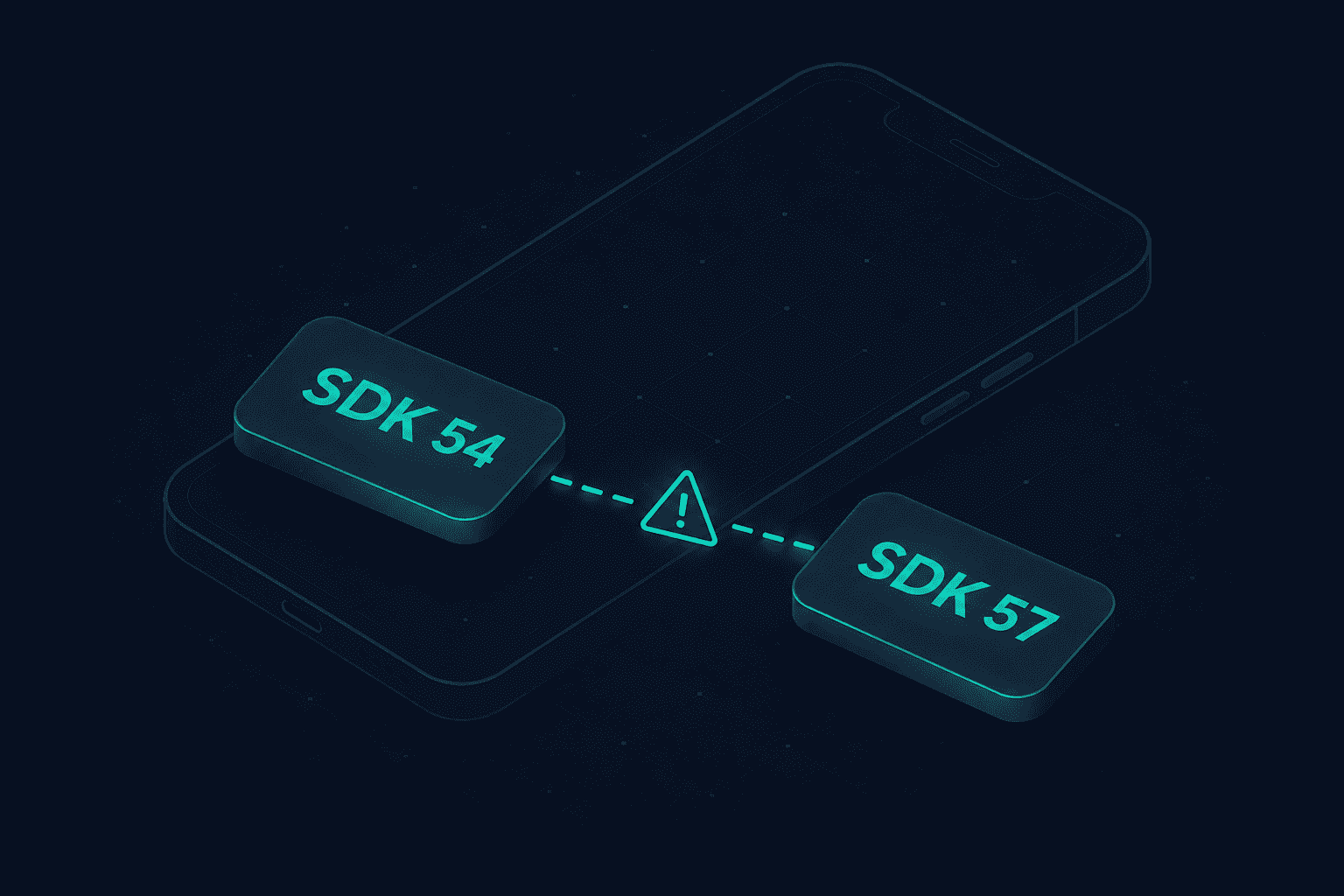
Expo Go shows this when the SDK version your project targets doesn't match the SDK baked into the installed app. You'll see one of these on the device screen after scanning the QR code:
- Project is incompatible with this version of Expo Go
- The project you requested requires a newer version of Expo Go
- This project requires a newer version of Expo Go
Each build of Expo Go ships with exactly one Expo SDK version. The expo package in your package.json decides your project's SDK. If the two don't line up, Expo Go stops rather than crash halfway. So this is a compatibility gate, not a bug in your code.
Why it keeps happening in 2026
Expo Go on the Apple App Store stops at SDK 54. SDK 55 and later were never approved there, so any project on 55, 56, or 57 cannot run on an App Store copy of Expo Go — updating the app does nothing. The Google Play build can also lag behind a fresh SDK release by days or weeks, so Android sees a milder version of the same problem.
This is an App Store review situation, not something Expo can patch. Instead, Expo distributes matching builds through its own channels, which is what the fixes below use.
Step 1: Confirm your project's SDK version
Before installing anything, check which SDK you're actually on. Open package.json and read the expo dependency:
# Check the Expo SDK your project targets cat package.json | grep '"expo"'
Example output:
"expo": "~57.0.15" -> you are on SDK 57
Also check whether your app config still carries a stale sdkVersion. If app.json or app.config.js has an sdkVersion field, remove it or make it match the expo dependency. A mismatch between those two values triggers the same error.
Step 2: Pick the fix for your setup
The right fix depends on the device you're testing on and the SDK you're targeting.
Fix for a physical iPhone or iPad (SDK 55+)
Since the App Store copy tops out at SDK 54, Expo lets you self-sign a matching build using your Apple ID's free developer provisioning — no paid Apple Developer Program membership needed.
- Open sign.expo.dev in your browser and sign in with your Expo account.
- Select the SDK version your project uses (for example, SDK 57).
- Follow the on-screen steps to install the provisioning profile and the Expo Go build on your device.
- Restart the dev server with
npx expo startand open the project again.
The free certificate is valid for about seven days. When it expires, the app stops opening — head back to sign.expo.dev to re-sign and reinstall. That's an Apple provisioning limit, not an Expo one. Need something longer-lived for a team? See the TestFlight route below.
Fix for a physical iPhone (SDK 54, or team testing)
If your project is on SDK 54, install Expo Go straight from the App Store — that's the last version Apple approved. For teams who want to skip the 7-day re-signing, you can build your own Expo Go with eas go and hand it out through TestFlight internal testing. That path needs a paid Apple Developer Program membership. Expo documents the full flow in its deploy Expo Go to TestFlight guide.
Fix for Android, Android Emulator, or iOS Simulator
These platforms allow sideloading, so grabbing a matching build is quick. The simplest route is the web installer: open expo.dev/go, choose your SDK version and target platform, and install the build it gives you.
Prefer the terminal? The expo-go CLI downloads a binary for a given platform and SDK. Note the argument order — it's <platform> <sdk>, and you can pass latest or pin an exact version:
# Download the latest Expo Go for Android npx expo-go download android latest
Pin a specific SDK (e.g. SDK 57) for the iOS Simulator

npx expo-go download ios 57

Just print the download URL instead of fetching

npx expo-go url android latest
One caveat: the expo-go CLI works for Android devices, Android Emulators, and the iOS Simulator — not a physical iPhone, because Apple blocks sideloading older app versions. After installing, uninstall any old Expo Go to avoid conflicts, then run npx expo start again.
Still incompatible? Realign your dependencies
If the error survives a matching Expo Go install, your packages are probably out of sync with the SDK. Run the built-in checks:
# 1. Diagnose dependency and config issues npx expo-doctor@latest
2. Align every package with your installed SDK

npx expo install --fix

3. Remove any stale sdkVersion field from app.json / app.config.js
The SDK should come only from the expo package version
4. Clear caches and restart clean

rm -rf node_modules .expo
npm install
npx expo start -c
On rare occasions a freshly published store build can still reject a brand-new SDK because of a client-side bug rather than your project. If everything above checks out and it still fails, a development build sidesteps the whole compatibility handshake.
The permanent fix: a development build
Expo Go is a sandbox for learning and quick prototypes. For anything headed to production — or any project using custom native modules — Expo's own recommendation is to move to a development build. The native runtime is compiled for your exact project, so the SDK-mismatch error can never appear again, and you still get hot reloading and the dev tools.
# Add the dev client npx expo install expo-dev-client
Generate native projects and run locally

npx expo prebuild
npx expo run:android
npx expo run:ios

Or build for the team with EAS

eas build --profile development --platform android
eas build --profile development --platform ios
There's a one-time build cost of a few minutes, but after that the version wall is gone. If you're only supporting SDK 54 for now, you can also downgrade with npx expo install expo@^54.0.0 --fix — treat that as a temporary workaround, since you'll lose newer SDK APIs.
FAQ
I updated Expo Go and it still says incompatible. Why?
The App Store version is frozen at SDK 54. Updating it won't add SDK 55+ support. Install a matching build from sign.expo.dev (iPhone) or expo.dev/go (Android and simulators) instead.
Do I need a paid Apple Developer account?
No. The sign.expo.dev method uses your Apple ID's free provisioning. The only cost is re-signing roughly every seven days. A paid account is only needed for the longer-lived TestFlight route via eas go.
What's the difference between Expo Go and a development build?
Expo Go is a prebuilt app with a fixed SDK and native modules. A development build is compiled for your project, includes exactly the native code you use, and never hits the SDK-mismatch gate.
Sources & further reading
- Expo docs: "Project is incompatible with this version of Expo Go"
- Expo docs: development tools and the expo-go CLI
- expo.dev/go — download a matching Expo Go build
- sign.expo.dev — self-sign Expo Go for a physical iPhone
- More app development guides on muhammadhuzaifa.com
Everything here was checked against the official Expo documentation as of its August 2026 update. If you hit an edge case I haven't covered, drop me a note — I keep these guides current as new SDKs land.